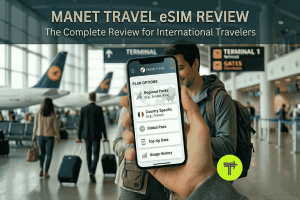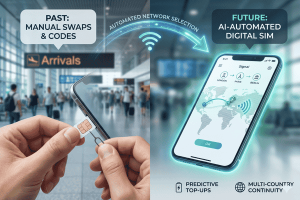
The advent of eSIM technology has revolutionized how we travel, making it easier for iPhone users to switch between carriers without fumbling with physical SIM cards. Whether you are using a local eSIM plan for your home country or preparing for an international trip, activating your digital SIM is now faster than ever.
In this guide, we will walk you through the updated process of activating an eSIM on your iPhone, including the latest features for iOS 17 and iOS 18.
Prerequisites
Before you begin, ensure you meet the following requirements:
- Compatible Device: You need an iPhone XS, XR, or any later model. Note that iPhone 14, 15, and 16 models purchased in the U.S. are eSIM-only. Check our full list of supported eSIM devices here.
- Updated Software: Ensure your device is running the latest iOS for the best security and feature support.
- Internet Connection: You generally need a Wi-Fi network to activate. However, if you are setting up a new iPhone 14 or later, Apple now allows activation without Wi-Fi on certain networks.
- Carrier Support: Your provider must support eSIM. If you are traveling, Terminal eSIM provides instant access to global networks.
Method 1: eSIM Carrier Activation or Quick Transfer
If you just bought a new iPhone or are moving from an older model, this is the easiest method.
- eSIM Quick Transfer: During the initial setup of your new iPhone, you can transfer your physical SIM or eSIM from your previous iPhone. Ensure both devices are near each other, unlocked, and have Bluetooth turned on.
- Carrier Activation: Some providers assign an eSIM to your iPhone digitally at the time of purchase. When you turn on the phone, a notification will appear saying “Carrier Mobile Data Plan Ready to Be Installed.” Tap it and follow the onscreen steps.
Method 2: Activating with a QR Code (Most Popular for Travelers)
If you have purchased a travel plan, such as an eSIM for Italy or an eSIM for Spain, you will typically receive a QR code via email.
How to install:
- Open your Camera app and scan the QR code provided by Terminal eSIM.
- When the Cellular Plan Detected notification appears, tap it.
- Tap Continue and then Add Cellular Plan.
- Pro Tip: Label your new plan as “Travel” or “Secondary” so you can easily distinguish it from your primary home number.
Method 3: Manual Entry
If you cannot scan the QR code (for example, if it’s saved on the same phone you are using), follow these steps:
- Go to Settings > Cellular (or Mobile Data).
- Tap Add eSIM.
- Tap Use QR Code, then tap Enter Details Manually at the bottom.
- Enter the SM+DP+ Address and Activation Code provided in your Terminal eSIM confirmation email.

Managing Multiple eSIMs
One of the best features of modern iPhones is the ability to store multiple eSIMs. While you can store 8 or more, you can generally use two phone numbers at the same time (Dual SIM). This is perfect for keeping your home number active for iMessage while using a global eSIM plan for affordable data while exploring France or Abu Dhabi.
Troubleshooting Tips
- “Unable to Complete Cellular Plan Change”: This often happens if the QR code was already scanned or if you have a weak internet connection. Restart your phone and try again.
- Check Carrier Lock: Ensure your iPhone is “Carrier Unlocked.” If your phone is still under a contract with a specific provider, it may be restricted from adding a second eSIM.
- Need Help? Visit our Help Center for more detailed troubleshooting.
Conclusion
Activating an eSIM on iOS is a seamless process designed to get you connected in minutes. By removing the need for physical chips, you can land in a new country and have data before you even leave the airport.
Ready for your next adventure? Browse our destinations and get your eSIM today!